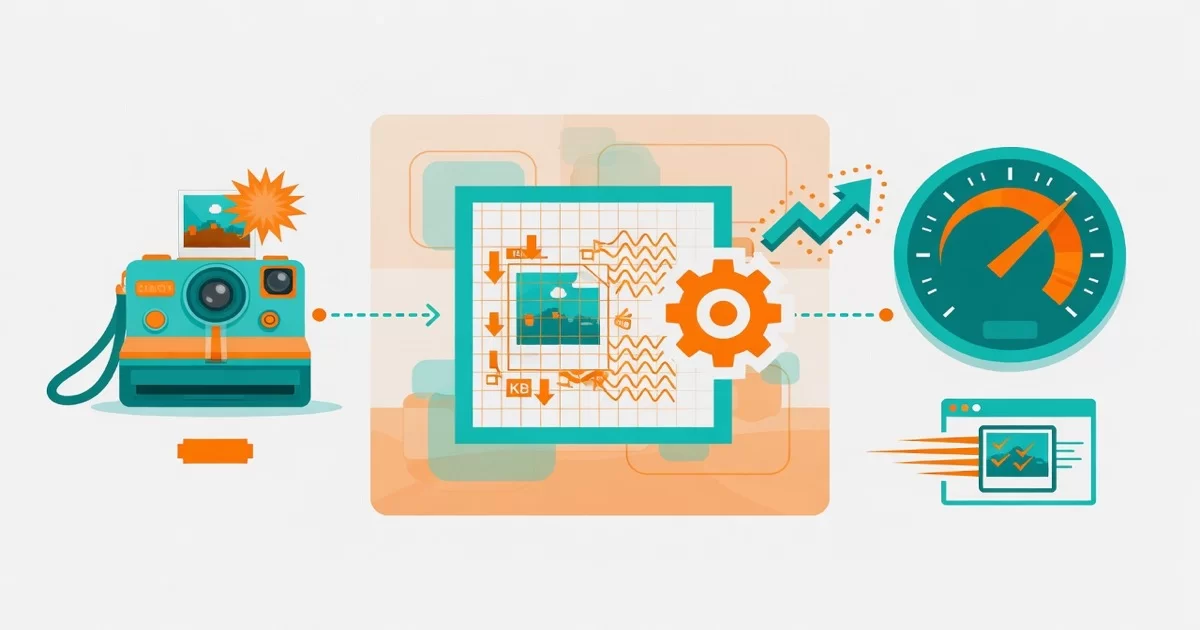
An image that looks tidy inside a product frame is not always a light file. The site may be loading the original and shrinking it with CSS, so the visitor still downloads the part of the file that never appears on screen.
Switching to WebP is one way to deal with that, but it has to come with the right size, quality, and loading method. Before you convert the whole library, pick one slow page and look at the files it actually loads.
Quick summary
- Measure first: check the real file in Network before you change anything.
- Right size: small frames get a file that fits; large views stay sharp enough.
- Export WebP, then compare it with the original.
- After the swap: check the URL, file type, file size, and cache.

Measure before you change the format
Open the page on a phone and see which images need to appear immediately. The Network panel in the browser’s inspector shows:
- Which file is loading, and the size transferred.
- How long each file takes to arrive.
If a cache is involved, note how each measurement was taken so you never compare two results from different setups. Check the banner, the product images, and the background images. A file that sits in the library but is not used on the page is not the priority yet.
Note: keep the original, so you can export again if the compression goes too far.
Choose the size for where the image sits
An image in a product list and an image opened large serve two different needs:
- Small frame: a version that fits the frame is enough.
- Detail view: it has to be sharp enough for a visitor to see the material, or the text on the product.
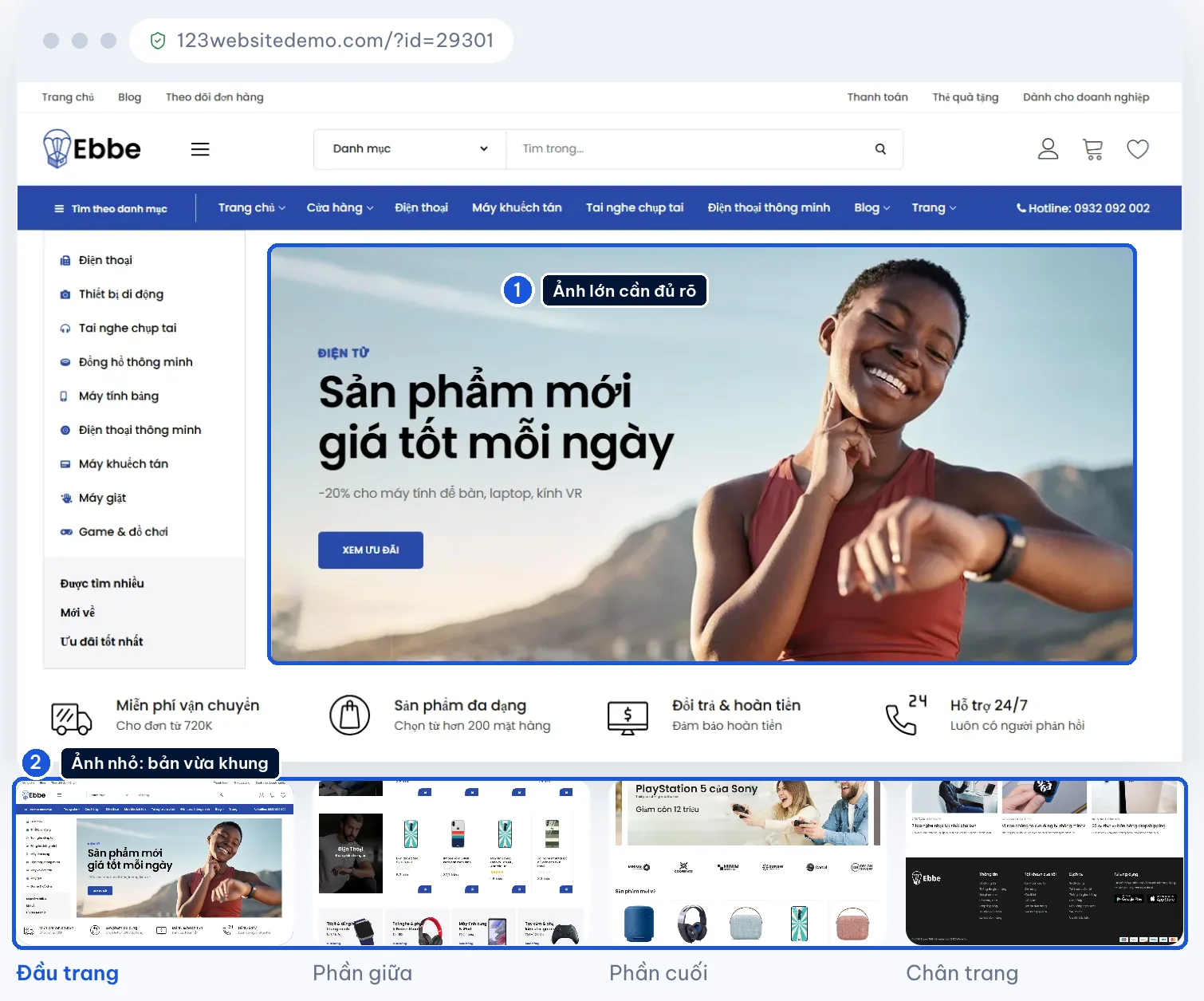
See how to choose image dimensions before you export the file.
On 123Website itself, product cards and grids were changed to request the large size instead of always calling full. The change is in how the image is used, not only in the file extension.
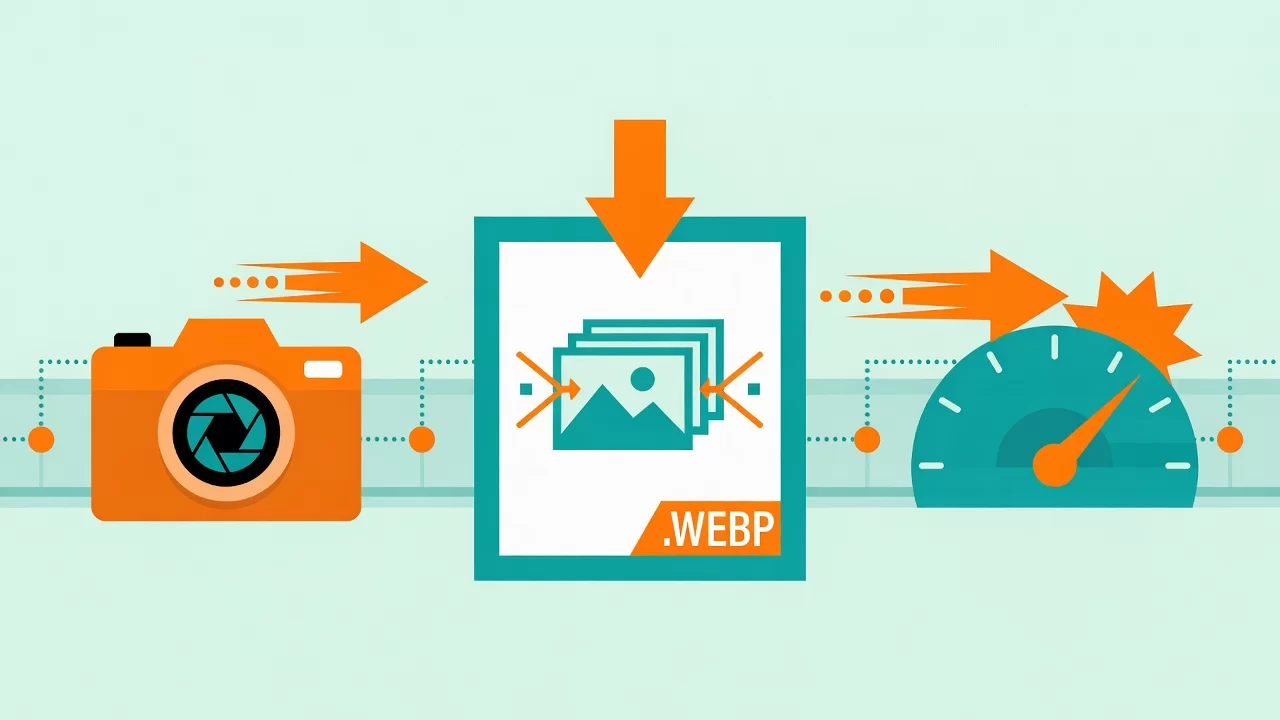
Export WebP, then look at the image again
Try a representative set first: photographs, images with text, and images that need a transparent background. Compare the export with the original at the real display size. Watch the logo, the edges, and details that smear easily.
There is no single reduction that is right for every image. If the WebP file is barely smaller, or it loses detail you need, adjust the export or keep the old format.
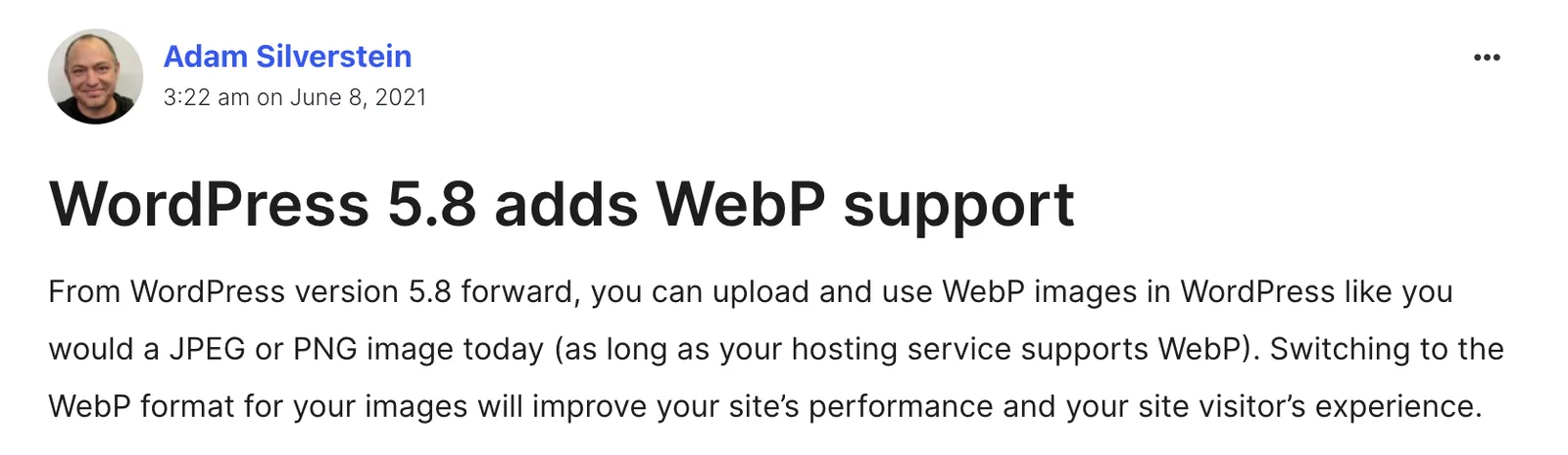
WordPress documentation on WebP notes that the hosting has to support the format. If uploads fail, check the server’s image-processing setup first rather than installing several plugins at once.
A file in the library is not the file the page serves
After you replace an image, open the page again and check the URL, file type, dimensions, and file size in Network. A cached page can still return the old version.
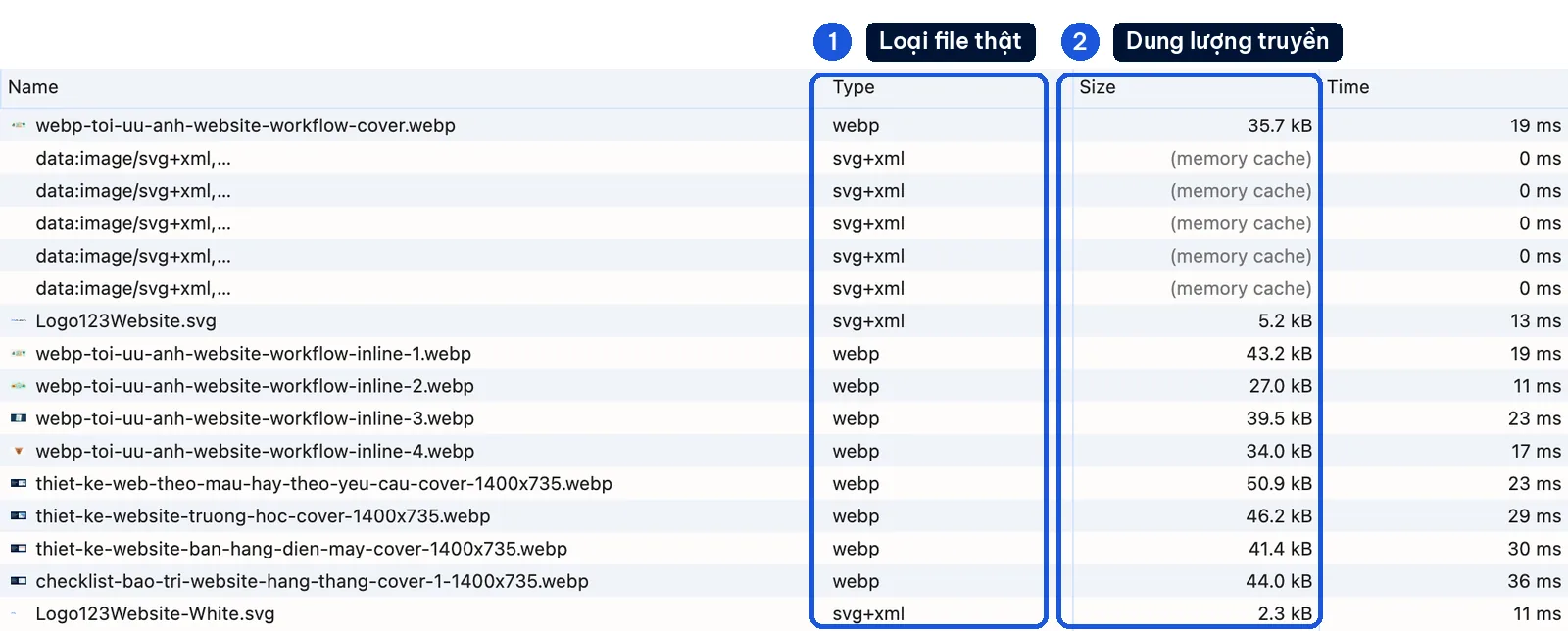
If the site uses an image-conversion system, look at that system’s actual output. Do not guess from the original file name.
Example: on 123Website, the gallery uses lazy loading. Images below the first screen can wait until the reader scrolls near them. The main image, which shows as soon as the page opens, should not be delayed. Do not use one loading method for every placement.
Do not skip what the reader sees
- Image frame: reserve the right aspect ratio so the layout does not jump when the file finishes loading.
- Alt text: describe useful information in the image. A purely decorative image should be handled differently. Do not stuff a keyword into every image, or describe things the image does not show.
Before you convert the remaining groups, test a product page, a listing page, and a page with a banner, on both a phone and a computer. Check whether images are cropped, whether a transparent background looks right, and whether the large view is clear.
Decide who prepares the files and who checks them
- Whoever supplies the images: responsible for the original file and the right to use it.
- Whoever publishes: chooses the right placement.
- Whoever implements: checks how the website serves the file.
For a large library, work in batches by the important pages, so you always have a stopping point and a way back.
123Website has built websites since 2013. In our experience, image handling should be written into the handover scope: how many images, where they come from, and what still has to be edited. Until the library has been reviewed, do not promise a fixed amount of time.
If you want a live site reviewed, send the URL and the slow page. After the change, measure again under the same conditions. And any change in enquiries cannot be credited to the image format alone.
The 123Website team. We have designed websites and business software since 2013, with 2,000+ projects delivered.